
Two-factor authentication (2FA)
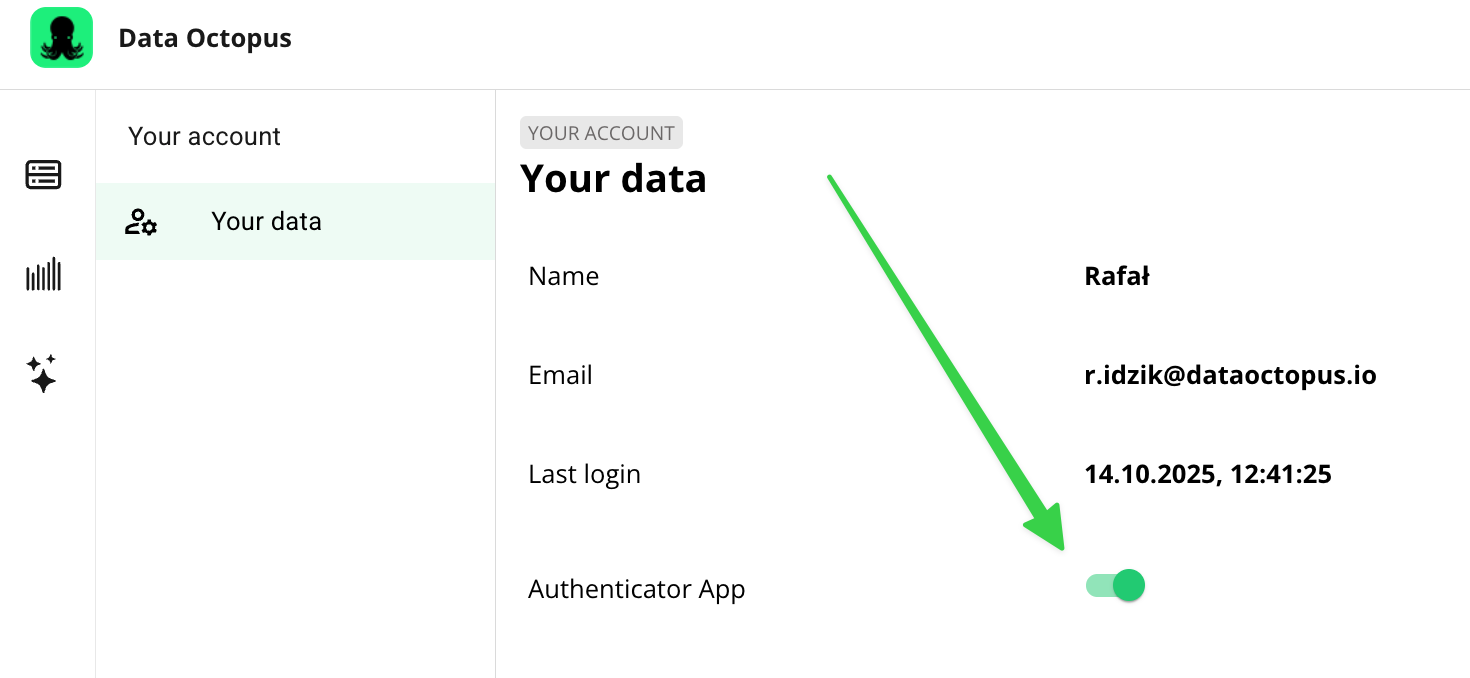
Turn on sign-in with a one-time OTP code from an authenticator app in Data Octopus, generated every 30 seconds.
How to turn on 2FA
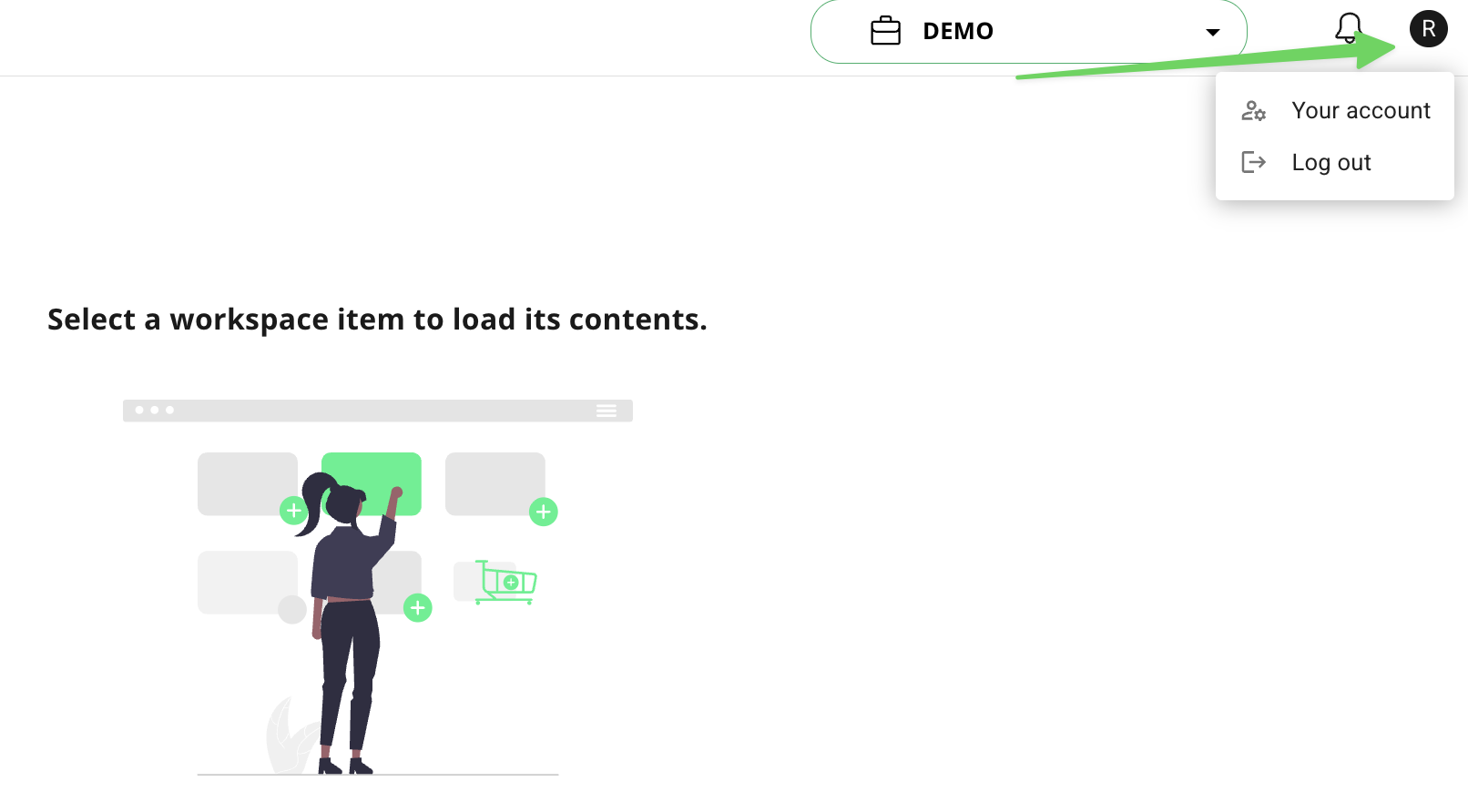
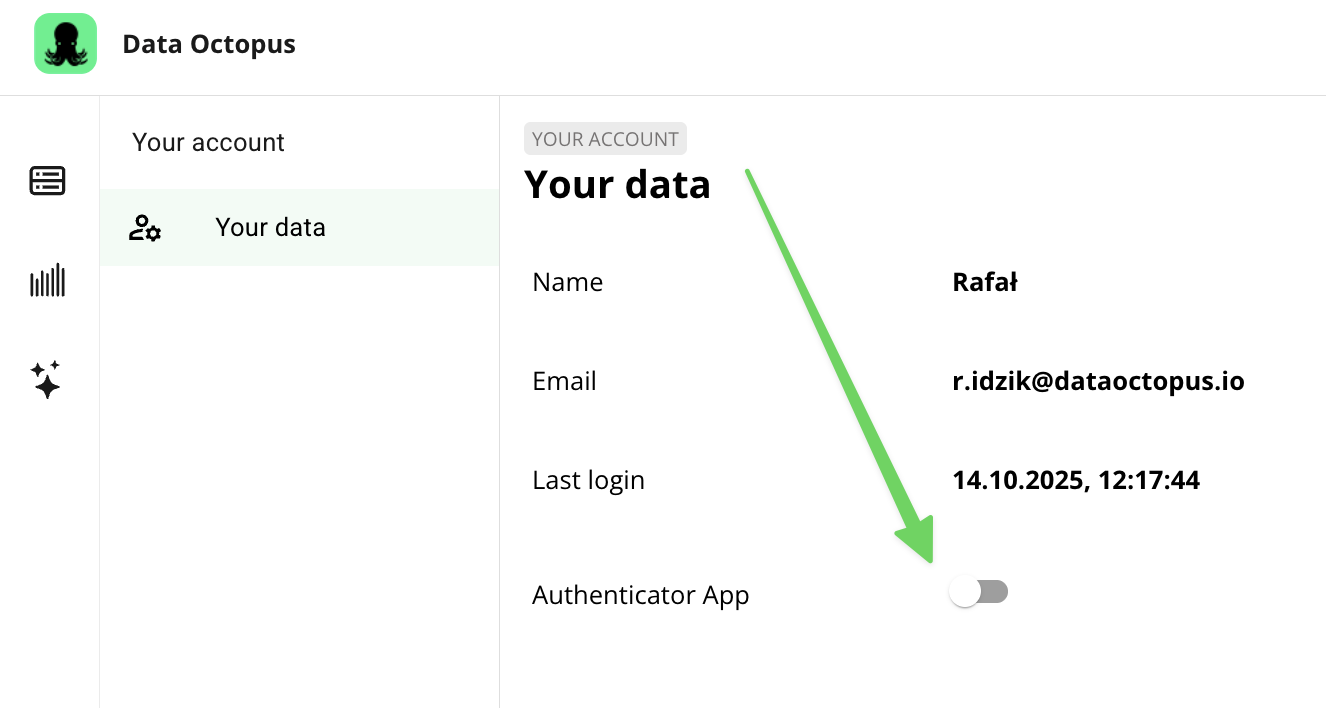
Step 1: Profile and “Authenticator App”
Open your profile (top right corner) and tick “Authenticator App”. Further instructions will appear.
Step 2: Password verification
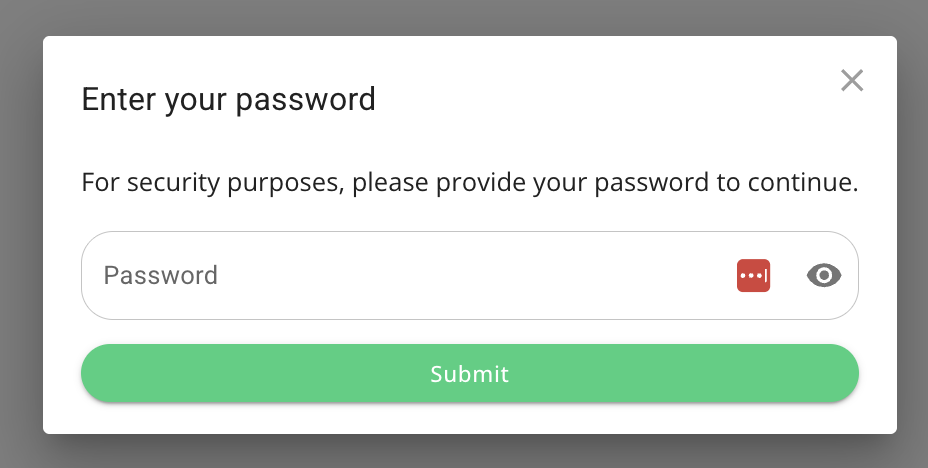
A pop-up asks you to re-enter your account password. Enter it and click Submit to start the 2FA setup.
Step 3: Install the app
Install Google Authenticator from Google Play or the App Store.
Google Authenticator on Google PlayGoogle Authenticator on the App StoreStep 4: Add the account
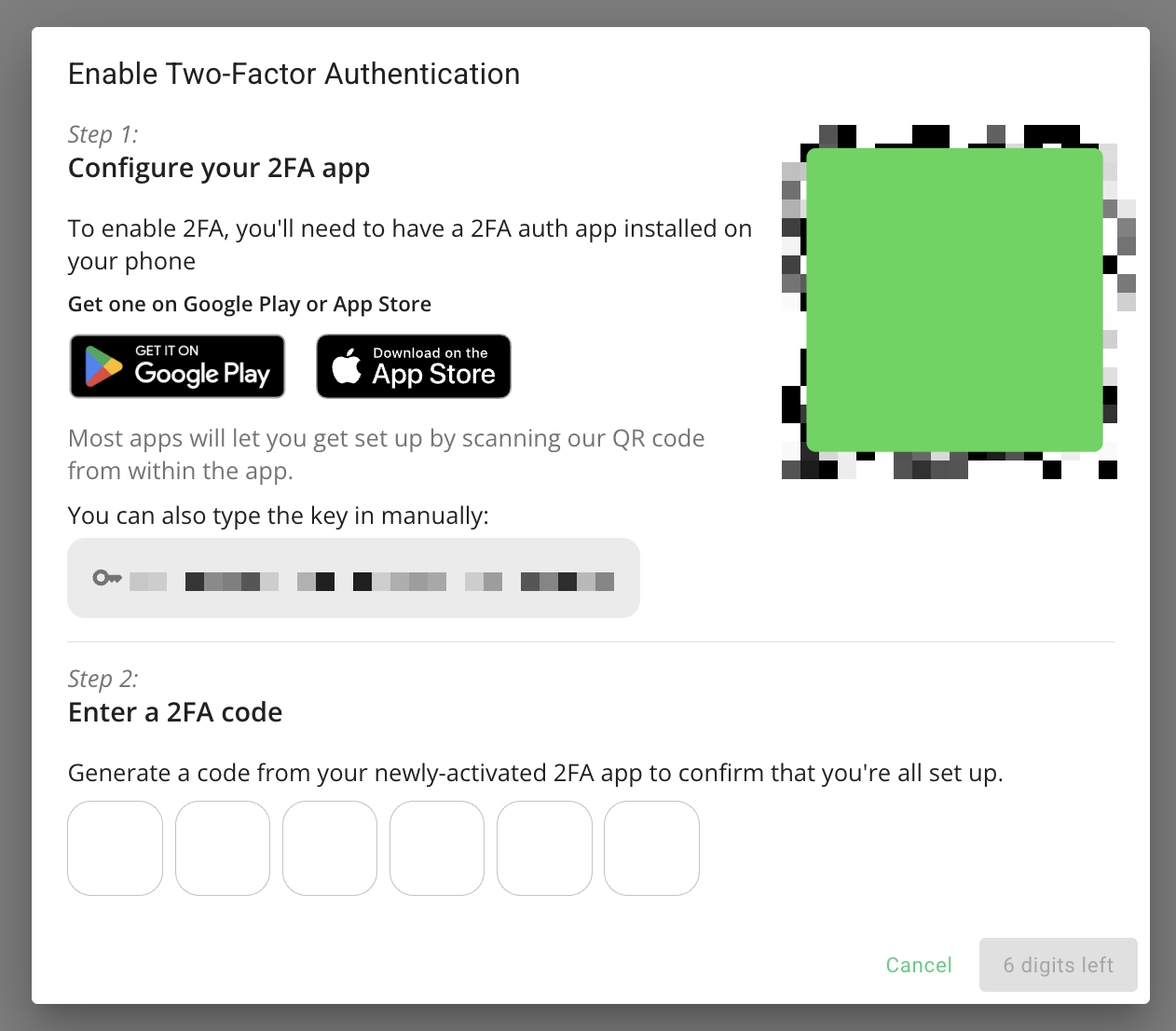
In the authenticator app, add a new account: scan the QR code shown or enter the generated key manually.
Step 5: Enter the code
The app starts generating six-digit one-time codes. Enter the current 6-digit code in the fields in Data Octopus. Two-factor authentication is now set up.
Signing in with 2FA
On your next sign-in and regularly (every two weeks, for security) signing in works like this:
- 1Enter your email and password.
- 2The system asks for a “Verification Code”.
- 3Open the authenticator app, read the current 6-digit code for Data Octopus and enter it.
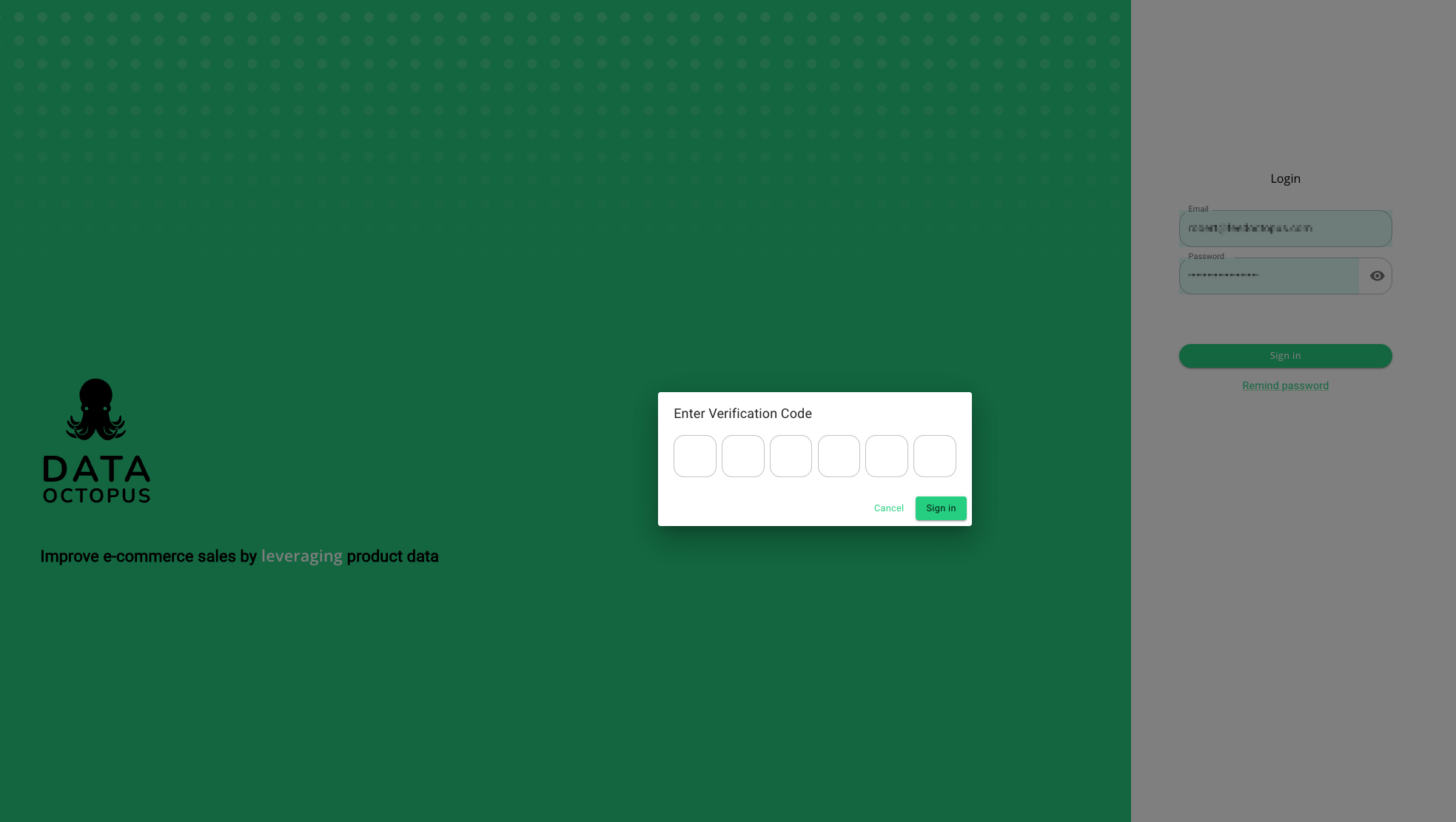
Once the correct code is entered, you get access to the app.